
What are Content Categories?
Throughout the platform you may want to add particular categories of things. For example, the default Company types are Communication, Manufacturing, Distribution, and Software Development. These are chosen via a dropdown menu during the creation of a Company. With Content Categories, you can add more types, such as “Tourism” and “Retail”. You can also change the ones already provided to you.
Another example would be CRM Deals. By default, there are nine different types you can use. If you don’t need that many, you can simply delete the ones that do not fit your business.
To get started, navigate to Flyout Menu > Categories.
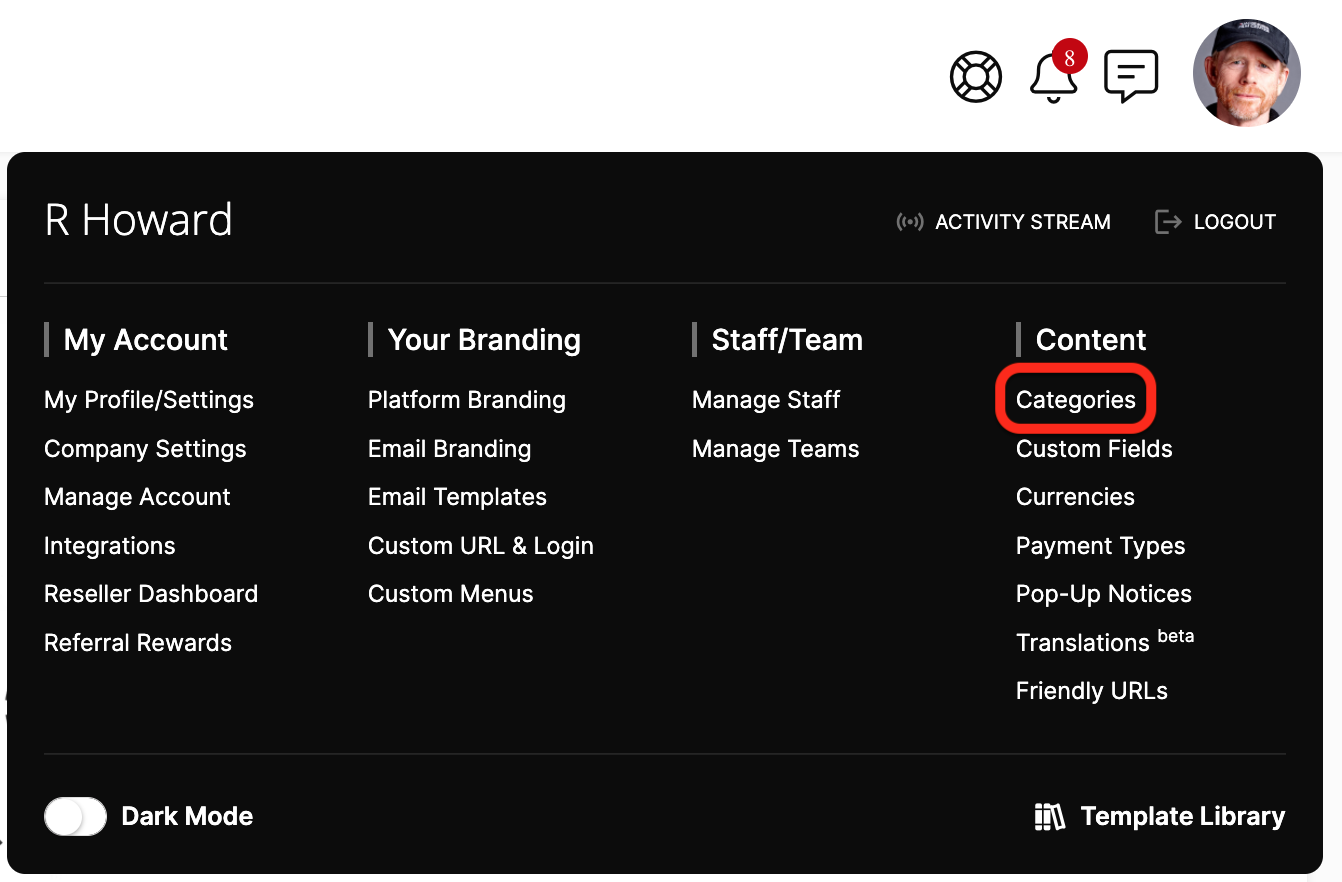
From here, you can see a list of the many Category Types to choose from.
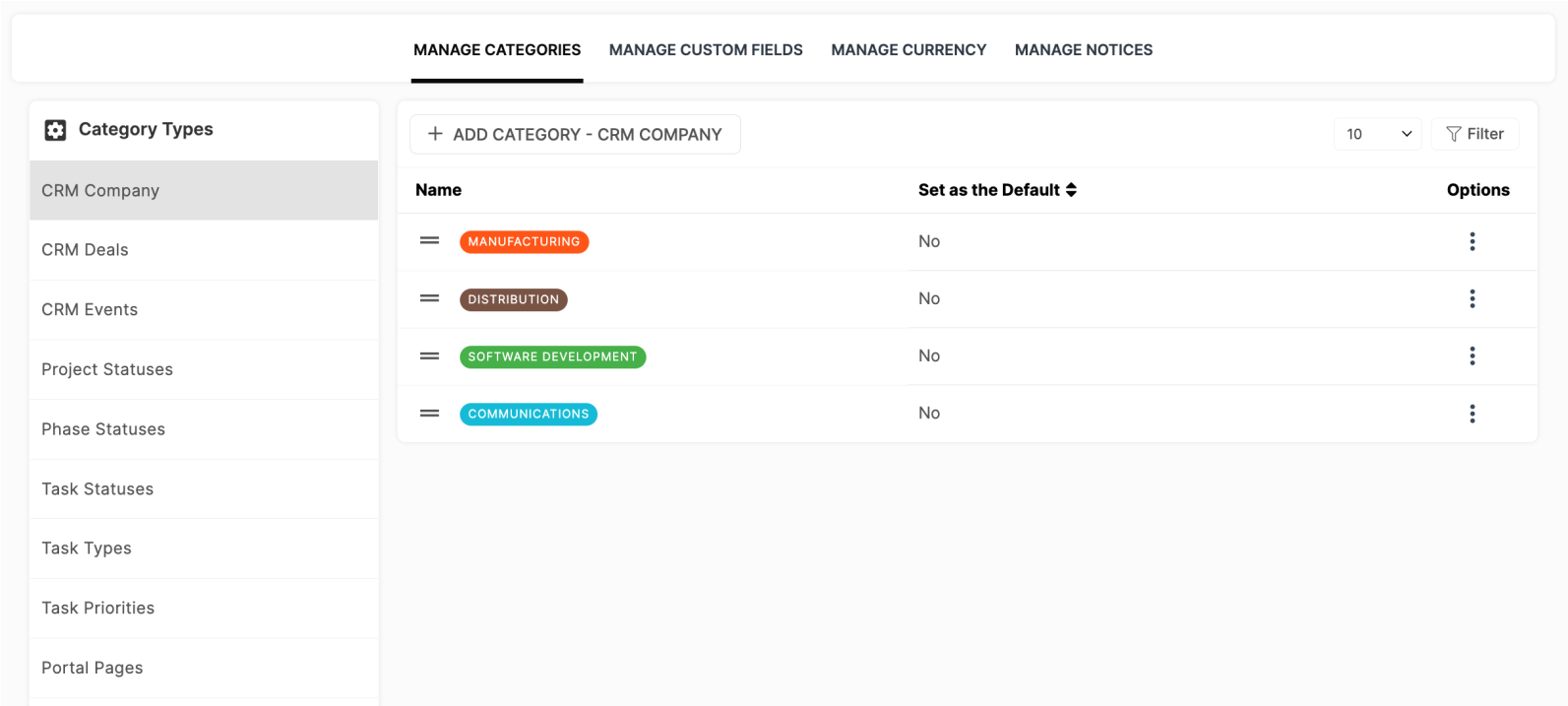
Adding & Arranging Content Categories
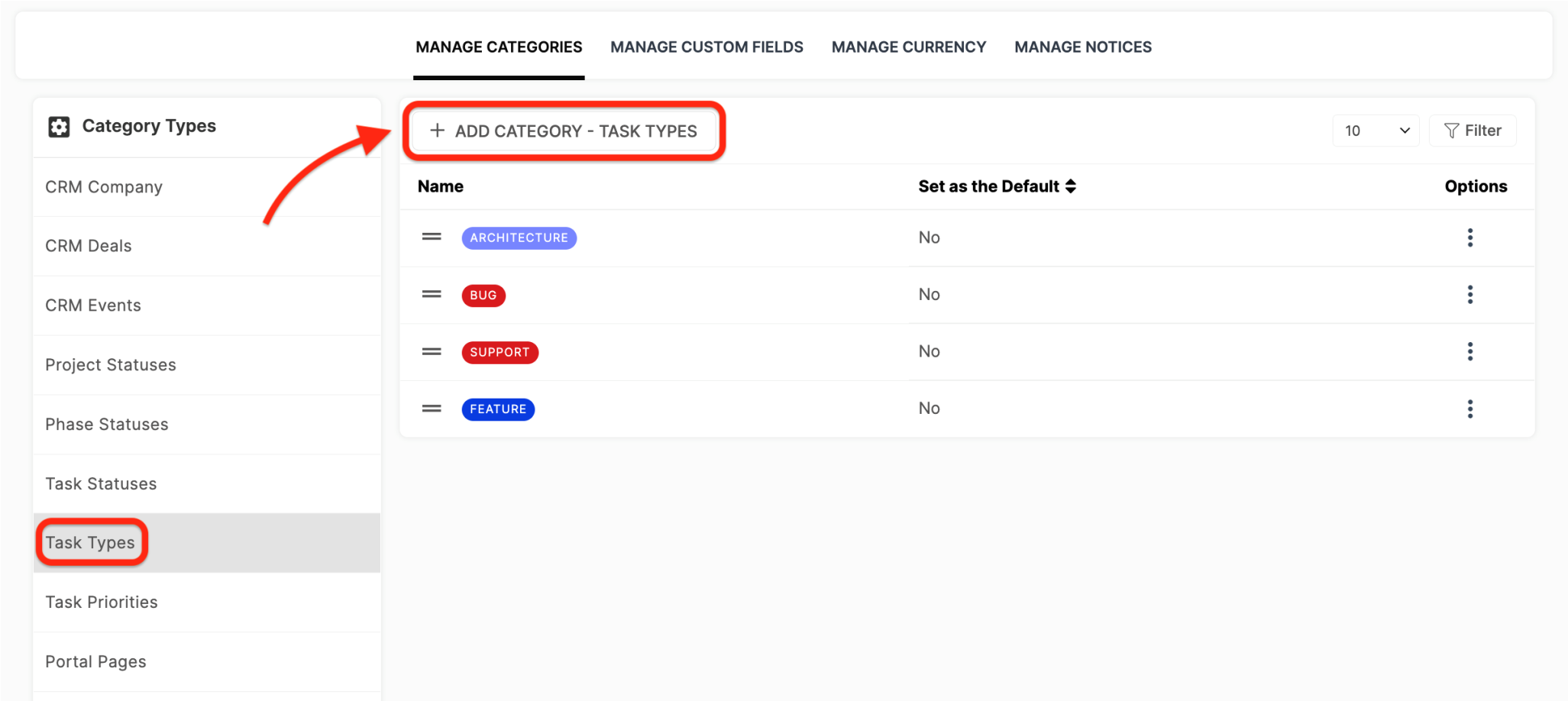
In this example, we’ll create a new Task Type.
Select Task Types from the side menu, then click the +Add Category – Task Types button.
Choose a Name for your new Task Type. You can use the Type dropdown menu to quickly switch to a different Category Type to create. You can also color-code the Category by using the Color Picker.
If you choose to Set as the Default, this is the Type that will be the default selection when you create a new item (in this case, a Task).
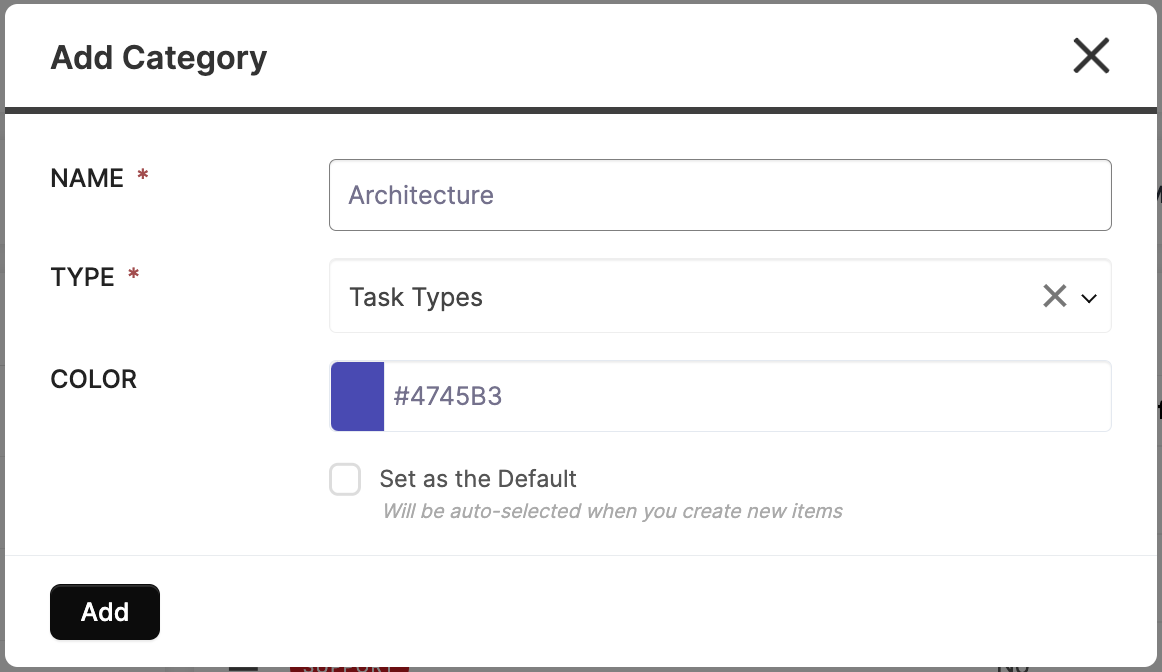
Click Add button to add the Category. Now you can click and drag to change the order of how the Categories will appear in their respective dropdown menu.
TIP: If you set a Category as the Default, it will appear at the top of the list regardless of how you place it.
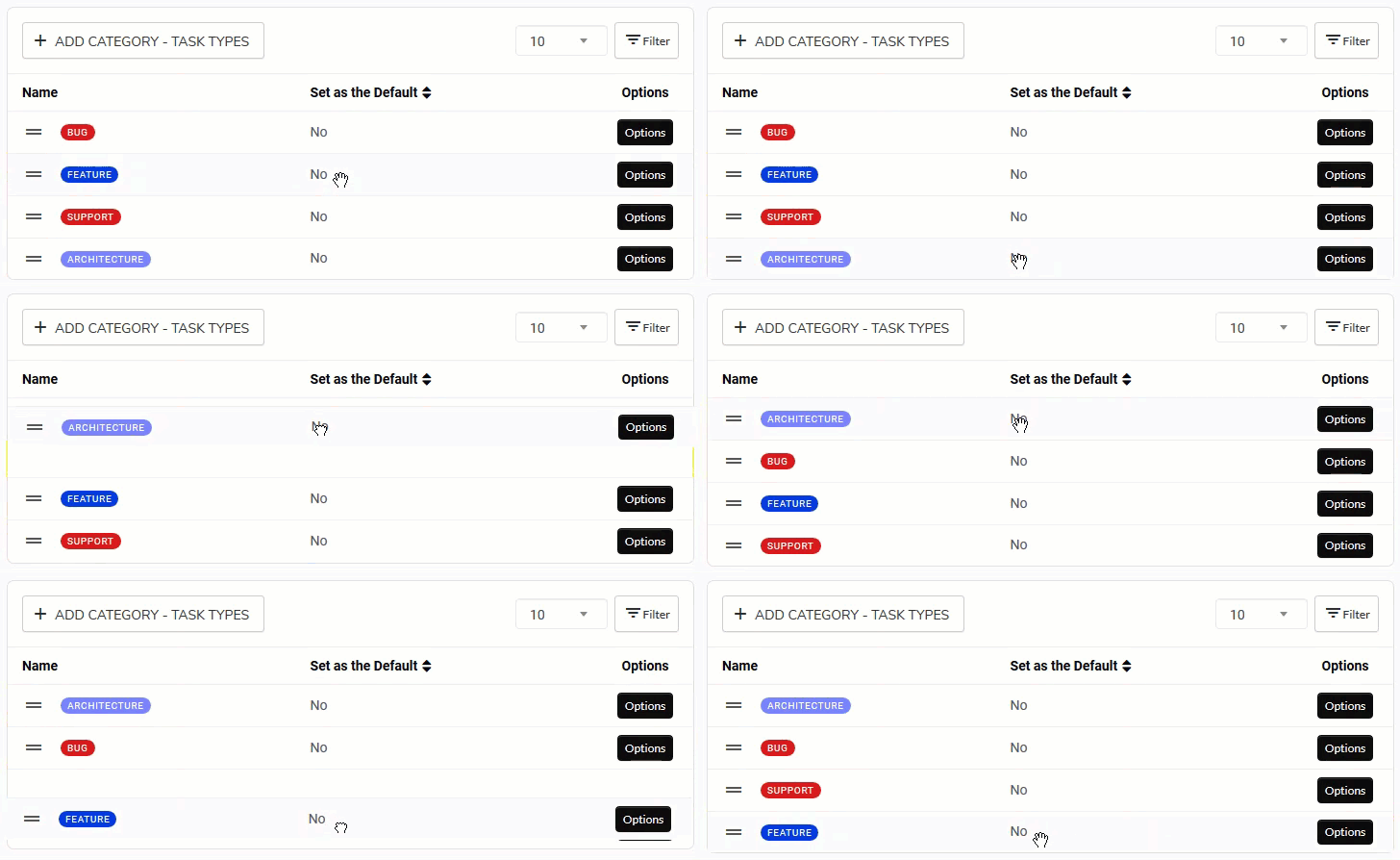
To rearrange Categories, hover over and then click and drag it up or down.
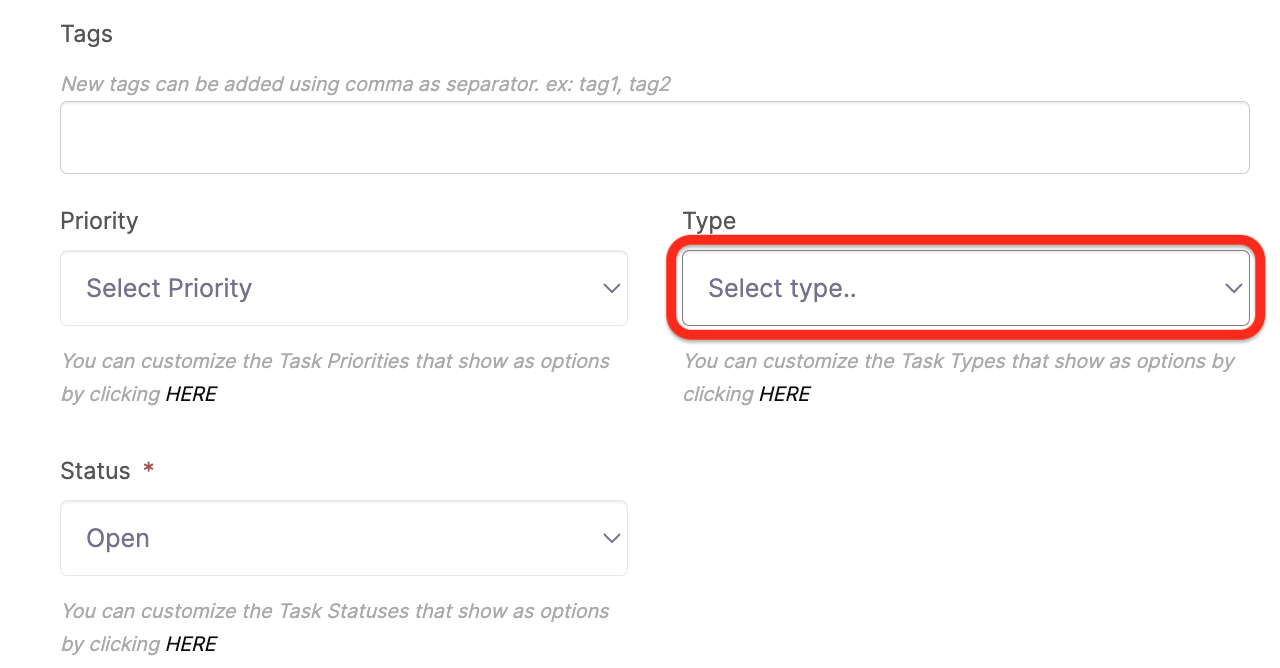
Now, let’s see this Category in action! In this case, we’ll need to navigate to a Project and create or edit a Task. Locate where you can select the Task Type and click on the dropdown menu.
to learn about creating Tasks
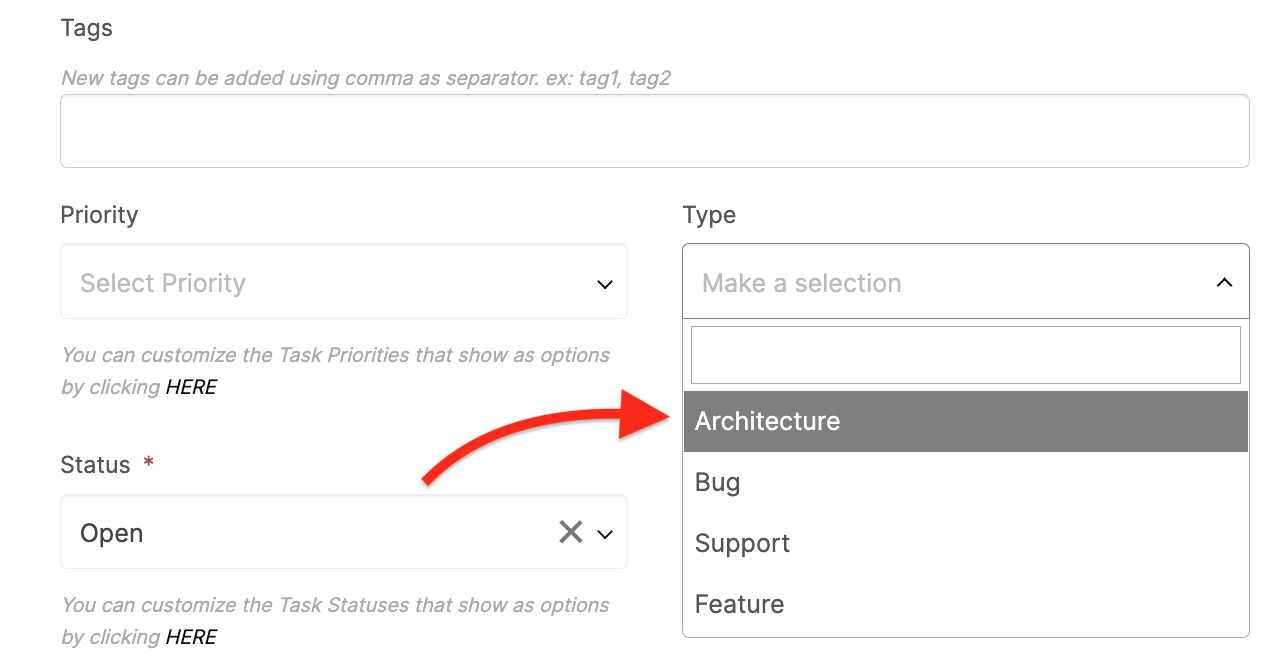
You can now select your newly-created Task Type!
How do I manage Content Categories?
Click the Options menu button beside the Content Category you would like to interact with.
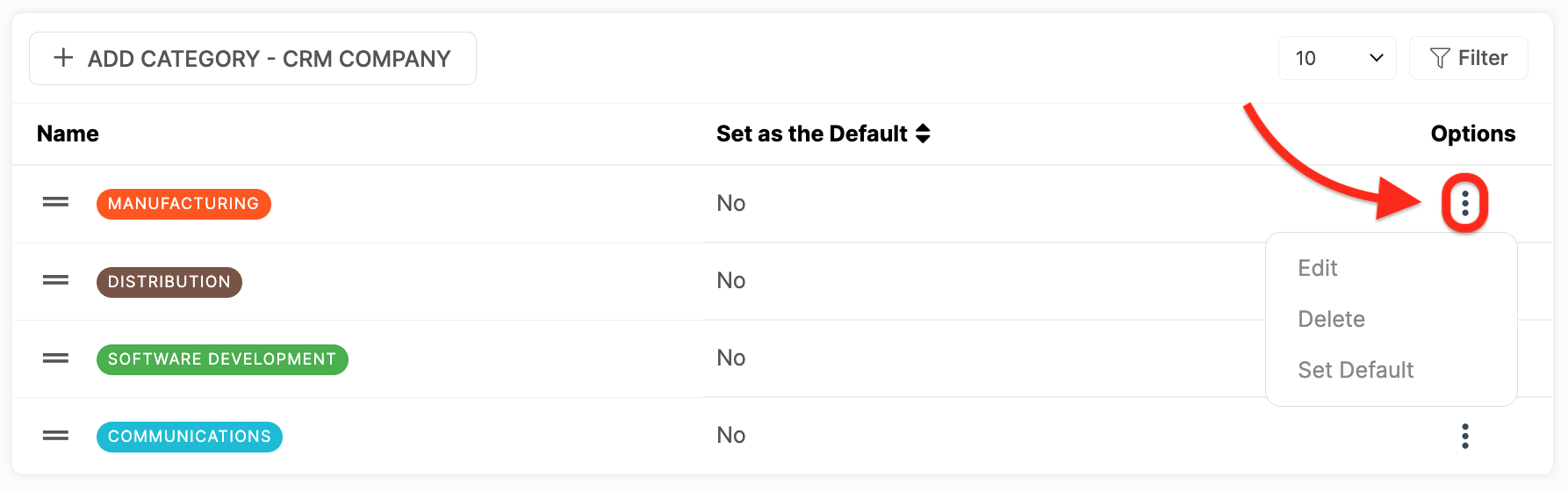
For most Content Categories, you will be able to Edit, Delete, or Set Default.
Specialized Content Categories have default Categories that can not be deleted, as they are required for functionality in the platform. These are:
Task Status Open, Assigned, Working, Review, Follow Up, and Completed
Project Status Completed
Phase Status Completed
IMPORTANT: If you try to delete a Task Status that is currently in use you will be prompted to change any associated Tasks to a different Status.