
What is Secure Messaging?
Secure Messaging allows you to write messages and maintain a record of your conversations. It’s similar to email, but is contained within the platform and can be used by Prospects, Clients, and all Staff Roles. You may have experienced this type of system with your bank or doctor.
By default, the platform is set in Privacy Mode which means that the actual content of messages is not included in email notifications sent outside the platform. This protects the privacy of the messages and helps ensure compliance with HIPAA and other privacy frameworks. However, you can enable Convenience Mode which will include the content of the Message within the email. More information is in the section below.
How do I use Secure Messaging?
Navigate to Messaging > Inbox.

This will take you to your Inbox, where you can see your incoming Messages. Click New Message to create one.


To: Choose a user(s) or any combination of users to send the Message to.
CC: Send a copy of the email to a recipient. Contacts are automatically treated as “BCC” so they will not be able to see each other.
Subject: The introduction to the content of the Message. This will be hidden in the email notification by default.
Message: You can create the contents of your Message with a WYSIWYG editor. This will be hidden in the email notification by default.
Attach File(s): You can upload files to be sent with this message. This option is available for all Staff and Contact roles who have access to the Portal and the Secure Messaging feature.
to learn more about File Attachments in Secure Messaging.
Read Receipt: When enabled, you will ‘Be notified when your message is read by the recipient(s).’
IMPORTANT: This functionality only applies when the Message is opened within the platform. If you have “Convenience Mode” enabled you will not receive a notification if the Message is read in the recipient’s email inbox.
Use Canned Response: If you have created any Canned Responses you can choose from them here.
to learn more about Canned Responses
How do I enable Convenience Mode?
If you want the contents of the Message to be in the email notifications you send navigate to Flyout Menu > Company Settings.

In the Privacy / Convenience Modes section there is a toggle to enable Convenience Mode.

When this feature is enabled your recipient will be able to simply reply to the email notification and send a message back via email. Their response will be read by the platform and inserted into the appropriate Secure Messaging thread.
WARNING: By enabling this setting, HIPAA compliance cannot be guaranteed. If you are working with sensitive information that is required by law to be privacy compliant, you should NOT enable this setting.
What does the Recipient see?
What the Contact/Staff Member sees is dependent on which mode you’re operating in.
SECURE MODE
In Secure Mode (default), the content of the message is NOT included.
The recipient will need to log into the Platform in order to read the Message.

CONVENIENCE MODE
In Convenience Mode, the content of your Message along with the Subject will be included in the email notification.

In this mode, the recipient can reply directly to the email without logging into the Platform.
The message will be received by the Platform and organized into the correct thread.
How do I configure Settings for Secure Messaging?
While in the Secure Messaging module, click the Settings tab in the left side menu bar.

A module will appear in which you can customize various settings.

Restrict messaging for Contacts to only their Coordinator: Enable this setting if you want your Contacts to only have the option of messaging their Coordinator.
Designate Staff to whom Contacts can Message: Enable this setting to choose which individual users, Circles, and/or Teams the Contact can send messages to.
Be notified when your message is read by the recipient(s): Users selected here will receive an email notification when their message has been viewed.
How do I use Keyboard Shortcuts in Secure Messaging?
While in Messaging, you can use Keyboard Shortcuts. You can view a reference window at any time by clicking the icon.
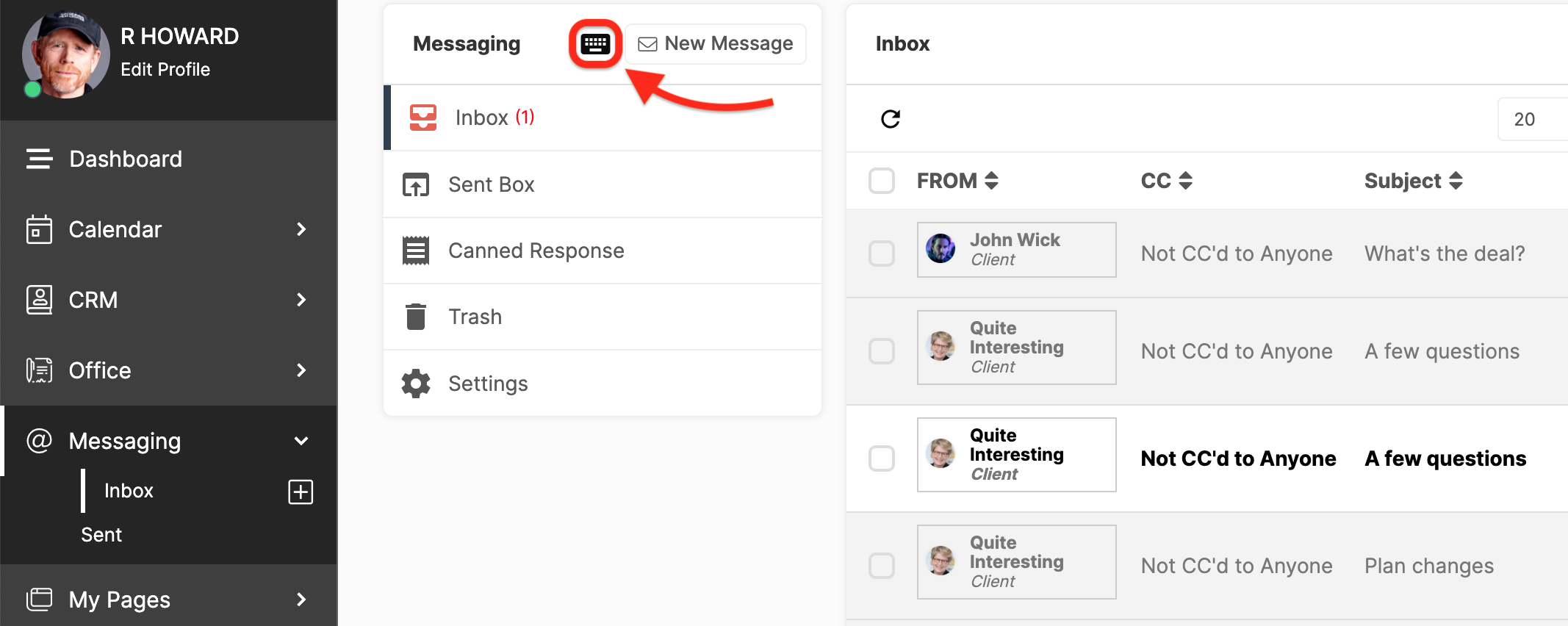
You can also open the reference window with the shortcut CTRL + /.
